2013/05/06

BlazePhoto Mother’s Day Coupo


BlazePhoto is the all-in-one picture management solution including photo viewing, photo editing and photo sharing. With BlazePhoto, you can easily turn your negative pictures into positive, or take your loved photos into next level by its rich editing tools like adding themed frames, resizing, rotating, cropping, reshaping, removing red eyes, adding amazing filers and effects onto your photos, and so one. To share your favorite or memorial photos to friends or families has never been so easier. BlazePhoto offers you the most effective and simplest way to share your pictures by Email, CD, DVD, HTML album, printing out, or even uploading to Facebook or Flickr.


Tip: The discount is for time limited only. Donot miss it out! Special for Mother’s Day celebration from May 8-15, 2013.

The cool features are as follow:
1.      Become a photo editing expert: it’s very easy to make your photo perfect by the rich editing features in BlazePhoto, such as crop, reseize, reshape, rotate, remove red eye, add themed frames, add professional effects and filters, and more.
2.      Easily store and organize photos: Keep your pictures and memories in a safe place by various means, such as burn your photos to CD or DVD, print out at home, create digital photo albums, export to your external drives, etc.
3.      Share your memories with friends and family: With BlazePhoto, sharing your creative pictures with your friends and family is an easy job. You can make photo slideshow, upload to Flickr or Facebook, send as attachments in Email, etc.

Tell your mom your love to her on her day! Remember her the most precious and memorable day with her in your life by your creative photos this Mother’s Day!

2012/07/20

Tips on Backing Up Computer

Why Should You Backup Computer?
You will never think of losing computer data until it really happens. A sudden computer crash?infected with a virus, spyware or Trojan? Or silly deleting or overwriting an existing file when you should not have by mistake? All these may be possible onto every computer user.

If any of the above happens, you will lose everything. Although the operating system and programs can be reinstalled, but not your work(letters, pictures, sheets, etc.). So, there is no reason not to make a computer backup.

Computer Backup Definition
Shortly speaking, a computer backup refers to a copy of the information on your computer. Thus you can restore your computer from the copy anytime. The computer backup can be a full backup, an incremental back up, a differential backup or a selective back up. It is up to you. All these backup types request different amounts of time to perform and different types of data backup medium. We will explain them one by one in the following.

Computer Backup Types
Full Back Up

As its name implies, a full back up means to back up everything on the computer such as the operating system, settings, installed software and files.

Thus it will take a long time to complete a full backup (according to the amount of information on the computer), and surly the full back up will require the latest amount of back up medium.

Incremental Back Up

An incremental computer back up allows you to back up only the files that have been changed since the last back up. The time to complete an incremental back up and the amount it needs in the back up medium depend on how many files have been changed from the last back up.

Differential Back Up

Similar as the incremental back up, a differential back up is also to back up only the changed files, but it will keep all the changes since the last full back up on your computer. Meanwhile, the back up time and storage requirement in back up medium are also up to the amount of changes since the last full back up.

Selective Back Up

As its name says, a selective back up enables you to select to back up the specific files or folders on your computer. Also, the back up time and storage amount are still up to how much data you want to back up.

2012/07/17

Backup Computer – How to Copy System Files to Hard Drive

Regular computer backup is very important to protect your data and works. There are various data backup options. You can choose to back up computer by Back Up utility provided by Microsoft, other PC backup software, backup to CDs, backup to removable hard drives, or more. Among those, to use an external hard drive to store your PC data is a good choice. It is very simple. Let’s explain how to copy system files to hard drive step by step.

Guide on how to copy system files to hard drive

Step 1. Read hard drive manual.

Take out your hard drive and read its manual carefully for any special instructions that must be finished before connecting your hard drive to PC.

Step 2. Install the driver for hard drive properly.

Install the drivers and required software bundled with your device. Make sure your hard drive has been connected with your computer successfully.

Step 3. Plug in the external power source if your external hard drive needs

If your external hard drive requires more power than what can be delivered by USB, plug it into an electrical outlet with the AC power adaptor which will come with your external hard drive.

Step 4. Connect your external hard drive with your computer via USB

Step 5. Wait till your device is recognized and initialized.

Step 6.On Windows computer, your external hard drive will pop up as another hard drive in My Computer area.

Step 7. Prepare the files or folders you want to back up, copy and paste them or drag them directly onto your external hard drive.

2012/07/12

How to download YouTube videos to iPhone 4 using BlazeVideo iPhone Video Converter

Today, for iPhone fans, watching YouTube videos on iPhone is very easy. Just follow the simple steps below to learn how to download YouTube videos to iPhone, iPhone 3G, iPhone 3GS, iPhone 4. Only few mouse clicks are enough!

Download YouTube videos to iPhone 4 Step 1: Start the video to iPhone 4 downloader software.

Download BlazeVideo iPhone Video Converter, install it and run it.

Download YouTube videos to iPhone 4 Step 2: Online download YouTube videos quickly.

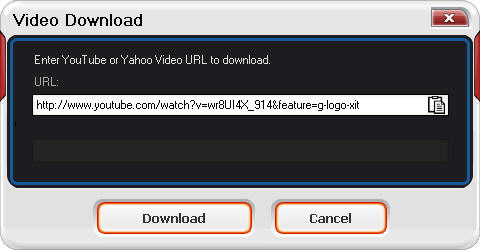
Click “YouTube” button on BlazeVideo iPhone Video Converter to turn to “Video Download” window:
download youtube videos to iphone 4

Download YouTube videos to iPhone 4 Step 3: Convert downloaded YouTube FLV videos to iPhone 4.

Drop down to choose “iPhone4” in “Profile” tab and click “Start” button to convert the downloaded FLV video to MP4 for iPhone 4 instantly.

2012/07/06

Simple Guide to Convert DVD to iPod – Main Movie

iPod family has quite a lot of members: iPod shuffle, iPod nano, iPod classic, iPod touch and each series has several generations. Among them, classic and touch feature video playback function. For the portability and convenience, people like to watch movies on iPod. Unfortunately, not all the formats can be used on iPod.
I’m sure there are many programs out there nowadays that will convert files to iPod format. And here is one – Aviosoft DVD to iPod Converter. It can convert DVD to iPod at fast speed and with high quality. The Main Movie mode lets you convert only the longest title of a DVD to iPod, remove all unwanted intros, menus, sound tracks, etc.
Below is the step by step tutorial showing you how to convert main movie to iPod classic and touch.

Transfer DVD Main Movie to iPod Guide

The tool you will need is DVD to iPod Converter. Download here, install it on Windows and follow the below detailed steps.

Step 1. Import DVD Movie

After launching the converter, insert the DVD into DVD drive, the converter will auto read the disc and display DVD information.
display dvd information

Step 2. Set Output

Specify a target folder to save converted MP4 file. Choose audio and subtitle that you want to keep.

Step 3. Start to Convert

Now you can click the “Start” button to start ripping DVD main movie to your iPod.
dvd to ipod - main movie

Step 4. Sync the Output Files to iPod

Open iTunes, click “File” on the main menu. From the drop-down list, select “Add File to Library” or “Add Folder to Library”. And now you can put the converted files or folder to the iTunes Library. Connect your iPod nano to PC and now you can transfer the converted videos to your iPod nano with the sync of iTunes.

2012/07/02

How to Copy Main Movie from a DVD to iPad 2

As one of the most popular portable devices in current life, it does not mean that people can enjoy all videos on iPad 2. That is to say, you need to convert the videos through some converters at first. In this article, we will show you how to copy main movie from a DVD to iPad 2 compatible format, thus you can play DVD main movie on iPad 2 anywhere at anytime.

Step 1: Install a DVD to iPad converter software

Hundreds of thousands of downloads tell us the BlazeVideo DVD Copy   is the best program to convert DVD to iPad.
convert main movie from a dvd to ipad 2

Step 2 Select iPad 2 as output device

After launching the DVD to iPad 2  converter software, insert the DVD disc to your computer drive. Your DVD information will be loaded automatically. Select “Movie File” in the drop down list of “Copy as” tab, and then choose iPad 2 as output device.
BlazeVideo DVD Copy software provides with several output MP4 resolutions for playback on iPad 2 even including the ones for iPad 2 HD. You are also allowed to customize the settings by clicking the “Setting” button: change the resolution, bitrate, frame rate in video and format, bitrate, sample rate, channel in audio. You can decide which works best with your iPad 2 device.

Step 3 Choose Main Movie as copy mode

This DVD to iPad 2 ripper tool has 4 DVD copy modes for your choice: Entire Disc, Main Movie, Customize, Split Disc. In this article, we mainly show how to convert the main movie from a DVD disc to iPad 2.

Step 4  Rip DVD to iPad 2 compatible format

By now it is time to convert the main movie of a DVD to iPad 2 supported format by clicking the “Start” button.

Step 5  Add the movie in iTunes and transfer it to iPad 2

iTunes is such a tool to help us transfer the converted DVD movie to iPad 2. If your iPad 2 is not connected already, please connect and transfer the movies from iTunes. Surely, if you want to move iPad 2 music and movies back to computer or iTunes, try iPad Transfer software.

Step 6 Play DVD on iPad 2 for enjoyment

Now, open your iPad 2 and play the DVD movie.

2012/06/26

How to delete all files and folders in a directory

I am a frequent member in several forums and spend at least 2 hours on them everyday. Recently I have seen most friends ask the same question:”How do I delete a directory with all the files and folders in it?” I want to explain how to delete all files and folders in a directory here.


Step 1 Define a folder which you want to delete.
<cfset tDirectory = "C:\myFolder\"> <!--- this can be passed in a varaible or whatever --->

Step 2 Take advantage of Windows ODS command RMDIR.
We need to create a string which we will writeinto a .bat file. .bat file is sued to be executed in Windows later down in this article.

<cfset tString ="RMDIR /S /Q " & tDirectory> <!--- This is what we will put in the bat file --->

What? You do not know RMDIR? Donot worry. Let me explain it to you. RMDIR is a built-in command in Windows operating system, and it is usually used to do what we need by DOS. It will delete a directory as well as all directories, files and folders under the directory. Click “Start” > “Run” > type in cmd > press Enter key. You will enter the Dos window. Then type in rmdir/?. You will get the following attributes:

Microsoft Windows XP [Version 5.1.2600]
(C) Copyright 1985-2001 Microsoft Corp.

C:\Documents and Settings\pvarando>rmdir /?

Removes (deletes) a directory.

RMDIR [/S] [/Q] [drive:]path
RD [/S] [/Q] [drive:]path

/S Removes all directories and files in the specified directory
in addition to the directory itself. Used to remove a directory
tree.

/Q Quiet mode, do not ask if ok to remove a directory tree with /S


Step 3 Create the .bat file.
<!--- generate a .BAT file for later execution --->
<cffile action="WRITE" file="#expandPath(".")#\delete.bat" output="#tString#">

Step 4 Execute it with ColdFusion.
<!--- Now execute the file to delete everything (Folder and all sub-folders and files)--->
<cfexecute name="#expandPath(".")#\delete.bat" timeout="60"></cfexecute>

Step 5 To clean things up, let’s delete the .bat file (optional).
<!--- now delete the bat file --->
<cffile action="DELETE" file="#expandPath(".")#\delete.bat">

That’s it.

2012/06/20

How to Play VCD and SVCD with DVD X Player?

A VCD can store about 70 minutes video, while SVCD can hold much higher video quality, especially much more sharp picture than VCD because of the higher resolution, but only can store 45-60 minutes video and far from all DVD players can play SVCD.
Besides playing DVD, DVD X Player also has the ability to play VCD and SVCD. This basic article will explain how to play VCD and SVCD with DVD X Player.

Play VCD and SVCD Guide

Step 1. Startup DVD X Player

Make sure you have installed the program on your computer. If not, just download slo it and install it by following the wizard. DVD X Player has a blue & black interface which looks very decent.

Step 2. Insert the VCD or SVCD into the drive

Step 3. Start to play

The movie menu will show on the interface, you can choose the one you want to see by mouse clicks.

Step 4. Control Playback

VCD and SVCD have to navigation functions. You can use the main panel and subpanel to browse the contents and control the playback. If the disc support, you can even choose to play “Previous” or “Next” chapter by clicking the two neighbor buttons of “Play”.
main & sub panel

2012/06/05

How to Get More Votes to Win More Free Software?

Have you participated CloneDVD’s The Most Classic Movie Competition? Want to get more votes to win some more free software? There are many ways that you can share the news with your friends and let them vote for you.

By Facebook

  • 1. Copy the URL of your submitted movie.
  • copy the URL
  • 2. Paste the URL on Facebook, write a comment and post.
  • share on Facebook
  • 3. Create an event and invite your friends to vote for you.
  • creat an event on Facebook

By Twitter

Push the link and text on Twitter to let your friends know it and vote for you.
push on Twiiter

By E-mail

Forward the e-mail to inform your friends that you have participated the competition and ask them to vote.

Other Ways

You probably have many other social accesses. Just make it exposed, thus you can get more votes.
In which way to get votes is up to you. Lots of freebies are waiting for you: DVD copy software, DVD decrypter, DVD converters, video converter, mobile tools and more. Hurry up!

Classic Forever - Win Freebies in CloneDVD’s The Most Classic Movie Competition

June 1, 2012 – Aviosoft, Inc launched The Most Classic Movie Competition in the theme of “Classics Forever” on clonedvd, with the awards of free software. The competition is open worldwide, and will last for a month. People who like films just tell us the name of the most classic movie in your heart, and then ask your friends to vote for you. As long as the more votes you get, the more freebies you will win.
Classics never fade. They have transcended time and trends, with indefinable quality. Classic movies are often universal favorites that hold up after repeated rescreening. Classics are renowned films of first rank, reference points in film mythology.
Clonedvd.net provides the best DVD copy, DVD decrypter, DVD ripper software since 2003. Its signature product CloneDVD is especially designed for movie funs to copy, burn DVD movies. Use CloneDVD to backup those classic DVD movies, let classics live forever.
How to Participate This Competition?
1.      Just fill the information including your name, e-mail, a movie name, and the reason why you think it is classic.
2.      Go to your e-mail box to confirm the submission, and then share it with your friends to let them vote.
3.      People who don’t feel like submitting a movie name can also vote for others’, just for you guys have the same favorites, similar feelings. A resonance of the souls is exciting.
1 vote equals to 10 cents. Your earnings can be used to purchase any product on our site. There are many DVD tools and video converters which will definitely expand your digital enjoyment. The competition will be closed on June 30, 2012. Come join us! Now!

About Aviosoft
Aviosoft Inc. has been one of the leading multimedia software companies since 2003, which mainly creates and develops DVD copy, DVD playback, video conversion and editing programs for better enjoying video, audio and pictures on computers and popular portable devices.
Links:
Company Website: http://www.clonedvd.net/
The Most Classic Movie Competition: http://www.clonedvd.net/promotion/classic-movie.php
Contact:
Marketing Department, Aviosoft, Inc.
marketing@clonedvd.net

Happy Father's Day

happy father's day

Get 20% OFF on ALL PRODUCTS at blazevideo.com


Until June 22, 2012, give your DAD the best gift on this Father’s Day:
  1. Promotion page: http://www.blazevideo.com/promotion/father-day.html
  2. Coupon code:  BlazeF
  3. Related products: DVD player, DVD converter, video converter, video editor, HDTV player, video or photo online sharing tool, DVD copy software and more